Automation operations · 8 min
Automation Change Management Checklist: Edit Live Workflows Without Breaking Them
Most automation breakages start with a small edit to a live workflow. Use this ten-step checklist to record, test, publish, watch and roll back changes in Zapier, Make and n8n.
By AutoMasteri Editorial Team · Published 2026-10-16
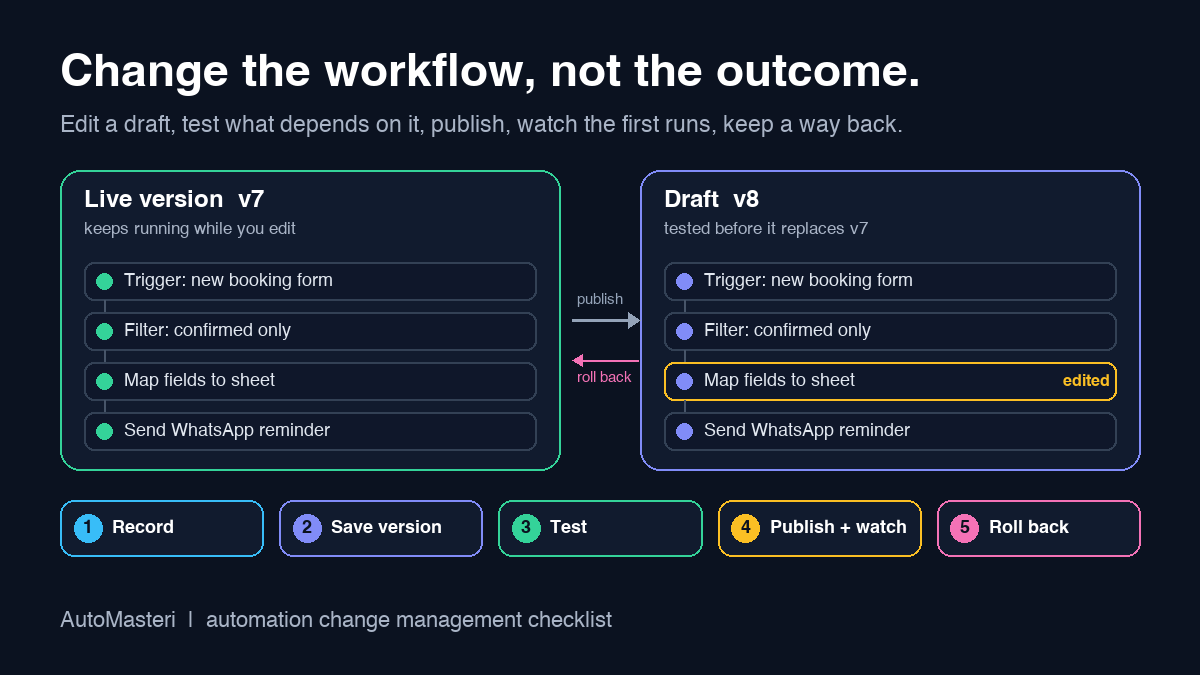
Most automation breakages start with a small edit
Workflows rarely fail on the day they go live. They fail three months later, when someone renames a spreadsheet column, swaps a form field, adds a filter to save tasks, or changes the email account a step sends from. The edit takes two minutes. The damage shows up a week later as a quiet gap: reminders that went out with no phone number, leads that stopped reaching the sales sheet, or invoices that were created twice.
Large companies handle this with formal change management. A small business does not need a change advisory board, but it does need the same basic habits: write the change down, keep a version you can go back to, test the new version before it replaces the old one, watch the first runs, and know exactly how you will undo it. This checklist turns those habits into ten steps a two or three person team can actually follow.
It is written for owners and operations leads who edit Zapier, Make or n8n workflows themselves, or who ask a freelancer to do it. The same steps apply to any tool that runs work on your behalf.
What Zapier, Make and n8n give you today
Before you plan a change, know what safety net your platform already provides and how long it lasts. Features and plan limits change, so check the current help pages. As of 16 October 2026, the official documentation describes them like this.
Zapier lets you edit a published Zap as a draft while the current version keeps running, and publishing the draft replaces it. Drafts are available on every plan. Each publish creates a version, and on paid plans you can open a past version and choose Edit from this version to roll back. Version history length depends on the plan: none on Free, one month on Pro, six months on Team and one year on Enterprise. Only one draft can exist at a time, versions are not included when you duplicate or export a Zap, and Zapier warns that steps from a Zap that has changed significantly, such as a different number or order of steps or different apps, will not replay.
Make lets you save a named version of a scenario from the Save menu and restore it from Version history. Make keeps each saved version for 60 days, except the latest one, which it keeps until you save a newer one. Two details catch people out: a restored version is not saved automatically, so you must click Save after restoring, and scenario recovery only retrieves unsaved changes after a crash or closed tab. It is not an autosave.
n8n now separates saving from publishing. Edits autosave as a draft, and production executions keep using the published version until you publish again. Workflow history, which lets you restore or download an older version, is limited on smaller plans: versions from the last 24 hours are available to all users, the last five days on n8n Cloud Pro, and full history on Enterprise. Named versions are never pruned automatically and are available on Cloud Pro and Enterprise and on self-hosted Business and Enterprise.
The pattern is clear. Every platform helps, but none of them protects the spreadsheet, CRM fields, webhook URLs or other workflows that depend on yours. That part is your job.
1. Write the change down before you open the editor
A change record does not need special software. A shared sheet with one row per change is enough. Fill it in before the edit, not afterwards from memory.
- Workflow name and the owner who approves the change;
- What will change, in one plain sentence, and why;
- Who or what depends on this workflow: people, sheets, other automations, customers;
- Risk level, test plan and the person who will check the first live runs;
- Rollback trigger and rollback steps;
- Planned publish time and the version name you will use.
If you cannot describe the change in one sentence, split it into smaller changes and publish them separately.
2. Classify the risk honestly
Not every edit needs the full process. A useful rule is to grade changes by what they can touch. Low risk: wording in an internal notification, or a new step that only reads data. Medium risk: new filters, changed field mappings, a new trigger condition, or a different connected account. High risk: anything that sends to customers, takes payments, deletes or overwrites records, changes the trigger app, or alters an AI step that drafts customer replies.
Low-risk changes can go straight through steps 3 and 8. Medium and high-risk changes follow every step, and high-risk changes should have a second person approve them. If you already use an approval matrix for AI actions, apply the same thinking here: https://automasteri.com/blog/human-approval-matrix-ai-automation/ .
3. Save a known-good version you can return to
Before editing, make sure the current working version is recoverable. In Zapier that means the current published version, provided your plan keeps version history long enough. In Make, save a version with a clear description such as "before phone field change, working". In n8n, name the version if your plan allows it, or download the workflow as JSON.
Because history limits are short on smaller plans, also keep your own copy for important workflows: an exported file or a duplicate that stays switched off, stored with the change record. Remember that a Zapier duplicate does not carry the version history with it, so label it with the date.
4. Edit a draft or a copy, never the running workflow
Use the draft features your tool provides, so the live version keeps working while you edit. Where a tool has no draft mode, work on a switched-off copy that points at test data, and only swap it in once it passes.
Avoid half-edits. Turning a Make scenario off for an hour while you rebuild a branch means every trigger in that hour either queues, fails or is lost, depending on the app. Note in the change record what happens to events that arrive while the workflow is paused.
5. Test with the inputs that broke things before
Run the edited version with real-looking test data: the normal case, an empty optional field, an unusual phone or date format, a duplicate submission and the record that caused the last incident. For customer-facing steps, send to an internal address or number first. Our acceptance testing checklist covers how to build a test set and who should sign it off: https://automasteri.com/blog/automation-user-acceptance-testing-checklist/ .
Test the change, and also test the things next to it. A new filter can quietly exclude records that a later step depended on.
6. Check everything downstream
This is the step most teams skip. Ask what reads the output of this workflow and whether it will still understand it.
- Spreadsheet columns, CRM fields and lookup tables that later steps or other workflows map by name;
- Other automations triggered by this one, such as a new row, a tag or a webhook;
- Webhook and form URLs, which in n8n switch to their production URLs only when you publish;
- Reports and dashboards that count the records this workflow creates;
- Staff habits: who expects the alert in a particular channel or format.
If a field name or format changes, update every consumer in the same change, or keep the old field alongside the new one until they are moved over.
7. Choose the publish moment and tell people
Publish when someone who owns the workflow is available for the next hour and traffic is low, not on a Friday evening or before a holiday. Tell the people who rely on the output what is changing and what to report if something looks wrong. Write the version name you used into the change record so everyone refers to the same thing.
8. Watch the first live runs closely
Check the first few runs by hand, then check again after the first full business day. Look for missing runs as well as failed ones, because a broken filter often produces silence rather than errors. Zapier shows which version each run used in Zap history, and you can search history for a version number such as v3, which makes it easy to compare runs before and after the change. For a fuller monitoring routine, see our exception monitoring checklist: https://automasteri.com/blog/automation-exception-monitoring-checklist-small-business/ .
9. Decide the rollback trigger before you need it
Write down in advance what will make you roll back, for example any customer receiving a wrong or blank message, or any run failing that succeeded before. Then write the steps: which version to restore, whether to pause the workflow first, and who to tell. A decision made calmly before publishing is far better than one made while messages are going out.
Rolling back the workflow does not undo what the bad version already did. List the records it created or changed and fix them deliberately. Be careful with replays: Zapier will not replay steps once the Zap has changed significantly, and replaying in any tool can create duplicates. Our guide to preventing duplicate automation runs explains how to make retries and replays safe: https://automasteri.com/blog/prevent-duplicate-automation-runs-small-business/ .
10. Close the change
Once the workflow has run cleanly for an agreed period, close the change record: the date, the version now live, what was tested, anything unexpected and any clean-up done. Update your automation inventory and owner list. If the change touched a connected account belonging to one person, check it will survive that person leaving, which our offboarding checklist covers: https://automasteri.com/blog/automation-offboarding-checklist-employee-leaves/ .
Common mistakes to avoid
- Editing several workflows at once, so nobody knows which change caused the problem;
- Relying on platform version history that expires before you notice the issue;
- Renaming a column or field without searching for everything that uses it;
- Restoring an old Make version and forgetting to save it;
- Leaving a test copy switched on, so two versions process the same events;
- Treating a successful test run as proof that real customers will see the right result.
Where to start this week
Pick your three most important workflows. For each one, confirm who owns it, save a known-good version outside the platform, and add a one-line change record the next time anyone edits it. That alone removes most of the guesswork when something breaks.
If you are not sure which of your workflows carry the most risk, the AutoMasteri free automation audit is a sensible first step: https://automasteri.com/free-automation-audit/ . AutoMasteri is a mentorship programme that helps owners design and run better systems; hands-on technical delivery is only included where the programme terms or a separate proposal say so.
FAQ
What is automation change management?
It is a simple routine for editing live workflows safely: record the change, keep a version you can return to, test before publishing, watch the first runs and know how to roll back.
Can I roll back a Zap to an earlier version?
On paid Zapier plans you can open a past version and choose Edit from this version, then publish it. How far back you can go depends on your plan. The Free plan has no version history.
How long does Make keep scenario versions?
Make's help centre says saved versions are kept for 60 days, except the latest saved version, which is kept until you save a newer one. Save the scenario after restoring a version.
Does n8n change live workflows while I edit?
No. Current n8n versions autosave edits as a draft, and production runs keep using the published version until you publish the changes.
Do I need this for small edits?
Low-risk edits such as internal wording need only a saved version and a quick check of the next runs. Anything that touches customers, payments or records should follow the full checklist.
Can AutoMasteri help us set up a change routine?
AutoMasteri mentorship can help your team design a change record, risk levels and rollback plan for your workflows. Hands-on technical delivery is scoped separately.
Build the map before the tools.
Start with the free AutoMasteri automation audit, or apply for a mentor review if you want Reji to review the operating system behind your customer journey.