Automation operations · 8 min
Automation Data Retention Checklist: Stop Your Workflows Hoarding Customer Data
Run history, staging sheets, alerts and files all keep copies of customer data. Use this checklist to map them, set retention periods with reasons and automate safe clean-up.
By AutoMasteri Editorial Team · Published 2026-10-15
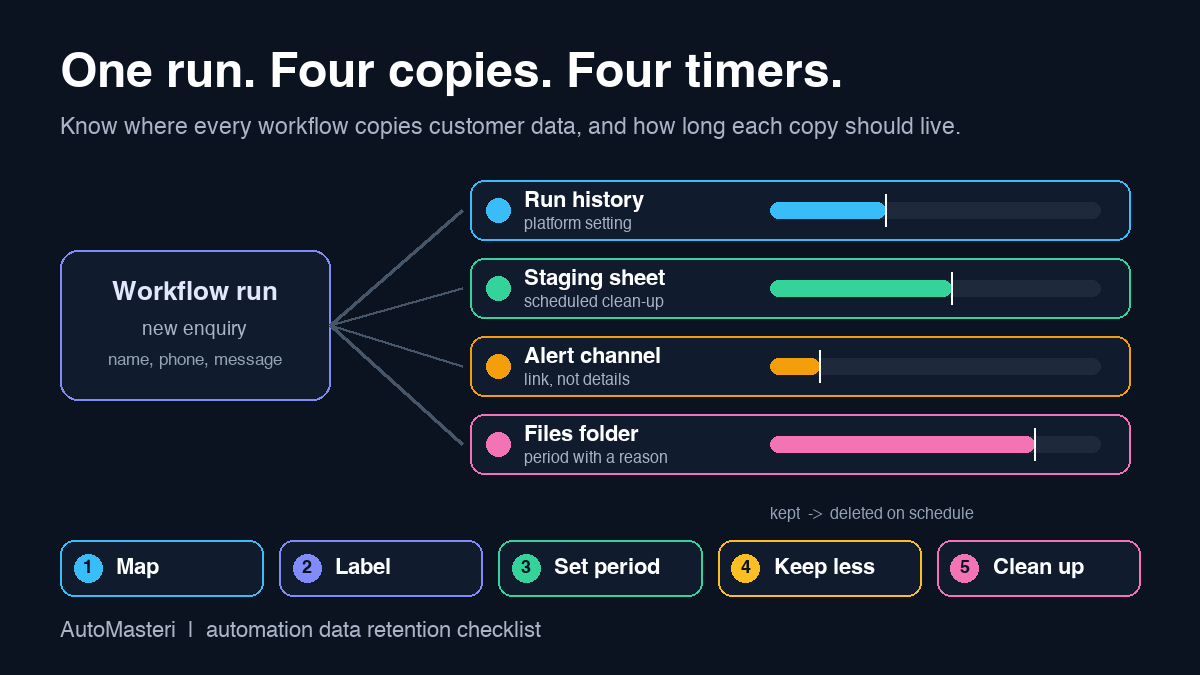
Your automations keep more copies than you think
Every time a workflow runs, it leaves something behind. The automation tool stores the run with the data that passed through it. A staging spreadsheet gains a row. An alert email repeats the customer's name and phone number. An attachment lands in a shared folder. After a year of runs, that adds up to a large, scattered and mostly forgotten copy of your customer data.
Data protection law in many places expects you to know where that data is and to keep it only as long as you need it. The UK GDPR and EU GDPR call this storage limitation: personal data should be kept in an identifiable form for no longer than is necessary for the purpose it was collected for. The UK Information Commissioner's Office adds practical expectations: know what you hold and why, be able to justify how long you keep it, set standard retention periods where you can, and review and erase or anonymise data you no longer need.
This checklist turns that principle into work a small team can actually do for its automations. It is operational guidance, not legal advice. The right retention period for tax records, health information or employment files depends on your country, your sector and your contracts, so confirm those with your adviser and use this method to apply the answer consistently.
Where workflow data piles up
The automation platform is only one of several places. In a typical small-business setup, copies sit in these spots:
- Run history in the automation tool itself, often including the full input and output of every step;
- Staging stores: the spreadsheet, Airtable base, data store or database table a workflow uses as a buffer or lookup;
- Processed-event logs that record which orders, bookings or messages have already been handled;
- Notifications: alert emails, Slack or Teams posts and WhatsApp messages that paste record details into a channel;
- Files: invoices, ID documents, signed forms and exports written to cloud folders by a workflow;
- AI steps: prompts and responses that include customer text, sometimes logged both by your tool and by the AI provider;
- Personal workspaces: a test copy of a workflow, a CSV export on a laptop, or a connected account belonging to someone who has left.
The last group is the one that surprises people. A former employee's private automation can keep feeding a personal spreadsheet for months. Our automation offboarding checklist covers how to transfer or close those: https://automasteri.com/blog/automation-offboarding-checklist-employee-leaves/ .
What the main platforms keep by default
Defaults differ by plan and change over time, so check current documentation. As of 15 October 2026, the platforms describe their behaviour like this.
Zapier's data retention and privacy pages say Zap history is kept in your account for between 29 and 69 days, because it holds the current and previous month and deletes older data on a monthly cycle. On the Enterprise plan, admins can shorten Zap history retention to between 7 and 30 days; Zapier notes that this deletion is permanent and applies to everyone in the account. Its Zap history help page also says it can only guarantee up to 60 days of run data.
Make's scenario history help page says the number of days run history entries are stored depends on your pricing plan, and the run details can include the bundles processed and module outputs. That is what makes it useful for debugging, and what makes it a copy.
Self-hosted n8n gives you the most control and the most responsibility. Its documentation says execution pruning is enabled by default and removes finished executions older than 336 hours, which is 14 days, or beyond 10,000 executions. You can also choose not to save successful executions at all, or to save only errors. One detail matters: annotated executions, such as those with tags or ratings, are never pruned.
None of these settings touch the copies your workflows write elsewhere. Pruning run history does nothing to the staging sheet, the alert emails or the folder of attachments.
The real tension: troubleshooting versus keeping less
Retention is not simply a matter of deleting everything quickly. Run history is how you find out why a workflow failed, and failed runs are often the ones you need to replay. Our exception monitoring checklist depends on having enough history to investigate an alert: https://automasteri.com/blog/automation-exception-monitoring-checklist-small-business/ .
The same goes for duplicate protection. A processed-events log has to outlast the longest retry window of the systems that send you events, or a late retry will look new and run again. We explain that log in the guide to preventing duplicate automation runs: https://automasteri.com/blog/prevent-duplicate-automation-runs-small-business/ . The answer is to keep the minimum that does the job, for the shortest period that does the job, and to make that period a decision rather than a default.
1. Map every place each workflow writes data
Take one workflow at a time. Follow a single real run from trigger to final step and note every system that receives or stores a copy, including notifications and files. Record the owner of each store and whether it holds personal data. A simple sheet with one row per workflow and one column per store is enough.
2. Classify what each store holds
You do not need a formal data classification scheme. Four labels cover most small businesses:
- Operational only: IDs, timestamps, statuses and counts with no personal details;
- Contact data: names, emails, phone numbers and enquiry text;
- Financial or contractual: invoices, payment references, signed agreements;
- Sensitive: health, identity documents, employee records or anything about children.
The label decides how hard you work on that store. Operational-only logs can usually stay longer because they carry little risk. Sensitive data in an alert channel is usually a design problem to fix, not a retention period to set.
3. Set a retention period with a reason
For each store, write a period and the reason in plain words: 30 days because that covers our monthly reconciliation and any replay; 90 days because customers dispute bookings within that time; as required by our accountant for invoices. A period without a reason is a guess. Where the law or a contract sets a minimum, record that source and let your adviser confirm it.
4. Keep less in the first place
The cheapest data to delete is data you never copied. A few design changes cut most of the volume:
- Pass record IDs between steps and look up details only where they are needed, instead of carrying the full record through every step;
- Put a link to the record in alerts rather than pasting names, phone numbers or message text into a shared channel;
- Turn off saving of successful runs where your tool allows it and you only investigate failures;
- Strip attachments and free-text fields from staging tables that only need a status;
- Before an AI step, send only the fields the step needs, and check what the AI provider and your tool log.
If you are reviewing AI steps more broadly, the AI automation audit checklist covers data exposure along with cost and accuracy: https://automasteri.com/blog/ai-automation-audit-checklist-small-businesses/ .
5. Automate the clean-up and keep a receipt
A retention period that depends on someone remembering will drift. Use the platform setting where one exists. For spreadsheets, tables and folders, schedule a small clean-up workflow that deletes rows or files older than the agreed period, then writes one line to a log: the date, the store and how many items it removed. Log the count, not the deleted content, or the receipt becomes another copy.
Run the clean-up against a copy first, check that it removes only what it should, and watch the first two live runs. A clean-up that deletes the wrong rows is an incident of its own.
6. Make erasure requests traceable
When a customer asks you to delete their data, the map from step 1 tells you where to look. Search each store for the person's email or customer ID, delete or anonymise what you are not required to keep, and note what you retained and why. Without the map, this becomes a hunt through every tool, and the copy in last month's alert channel is the one that gets missed.
7. Review on a schedule and at every change
Check the register every quarter and whenever a workflow is added, a tool is replaced, a plan changes or a person leaves; moving between plan tiers can change how long a platform keeps run history. Confirm the clean-up log shows recent runs and that each store's period still has a reason.
A retention register you can copy
Keep one row per store, with these columns., so you can show a customer, auditor or adviser how your automations handle data:
- Workflow name and owner;
- Store: tool, table, folder or channel;
- Data held and label: operational, contact, financial or sensitive;
- Retention period and the reason for it;
- How deletion happens: platform setting, scheduled clean-up or manual;
- Last clean-up date and items removed;
- Next review date.
Worked example: a training provider's enquiry flow
A small training company routes website enquiries into its CRM, posts each one into a team chat channel and adds a row to a sheet that tracks follow-up. Mapping one run shows four copies: the run history, the CRM record, the chat post with the enquirer's name, phone number and message, and the sheet row with the same details.
The team keeps the CRM record as the single source, with a period agreed for enquiries that never become customers. The chat post becomes a link to the CRM record plus the course name, which removes the busiest uncontrolled copy. The sheet keeps only the CRM ID and status, and a weekly clean-up deletes rows closed more than 60 days ago and logs the count. Run history stays at the platform default because the team uses it for replays. The register now answers a question they could not answer before: where is this person's data?
Sources and next step
Sources, all returning HTTP 200 on 15 October 2026. GDPR Article 5, principles relating to processing of personal data: https://gdpr-info.eu/art-5-gdpr/ . ICO, principle (e) storage limitation: https://ico.org.uk/for-organisations/uk-gdpr-guidance-and-resources/data-protection-principles/a-guide-to-the-data-protection-principles/storage-limitation/ (the ICO notes this guidance is under review after the Data (Use and Access) Act). Zapier, data retention, deletion and export: https://zapier.com/legal/data-retention-deletion . Zapier, data privacy overview: https://zapier.com/legal/data-privacy . Zapier, customize data retention: https://help.zapier.com/hc/en-us/articles/8496327478413-Customize-data-retention-in-Zapier . Zapier, view and manage your Zap history: https://help.zapier.com/hc/en-us/articles/8496291148685-View-and-manage-your-Zap-history . Make, scenario history: https://help.make.com/scenario-history . n8n, manage execution data: https://docs.n8n.io/hosting/scaling/execution-data/ . These references describe the platforms and are not a claim that AutoMasteri uses or is certified by any of them.
Pick the workflow that handles the most personal data and map its copies this week. If you want help deciding where to start, the free automation audit is a good first step: https://automasteri.com/free-automation-audit/ . AutoMasteri offers mentorship, strategy and guided implementation; hands-on clean-up of existing data and legal advice on retention periods are not part of this checklist.
FAQ
How long should I keep automation run history?
Long enough to investigate and replay failures, and no longer. For many small businesses that means a few weeks. Check what your platform and plan allow, and record the period and the reason.
Does deleting Zap or scenario history delete the data everywhere?
No. It removes the run history in the automation tool only. Copies the workflow wrote to spreadsheets, databases, folders, emails or chat channels stay until you delete them separately.
Should I stop saving successful runs?
Where your tool allows it and you only investigate failures, saving errors only is a simple way to keep less. Keep successful runs if you rely on them for reconciliation or replays.
What should a clean-up log contain?
The date, the store, and how many items were deleted. Do not copy the deleted content into the log, or the log becomes another store to manage.
Is this enough to comply with GDPR?
It helps you apply the storage limitation principle to your automations, but compliance also depends on your lawful basis, contracts, security and local law. Confirm required retention periods with a qualified adviser.
Can AutoMasteri set retention up for us?
AutoMasteri provides mentorship, strategy and guided implementation, so it can help your team map workflows, design a retention register and plan clean-ups. Hands-on data clean-up is scoped separately, and legal advice is not provided.
Build the map before the tools.
Start with the free AutoMasteri automation audit, or apply for a mentor review if you want Reji to review the operating system behind your customer journey.